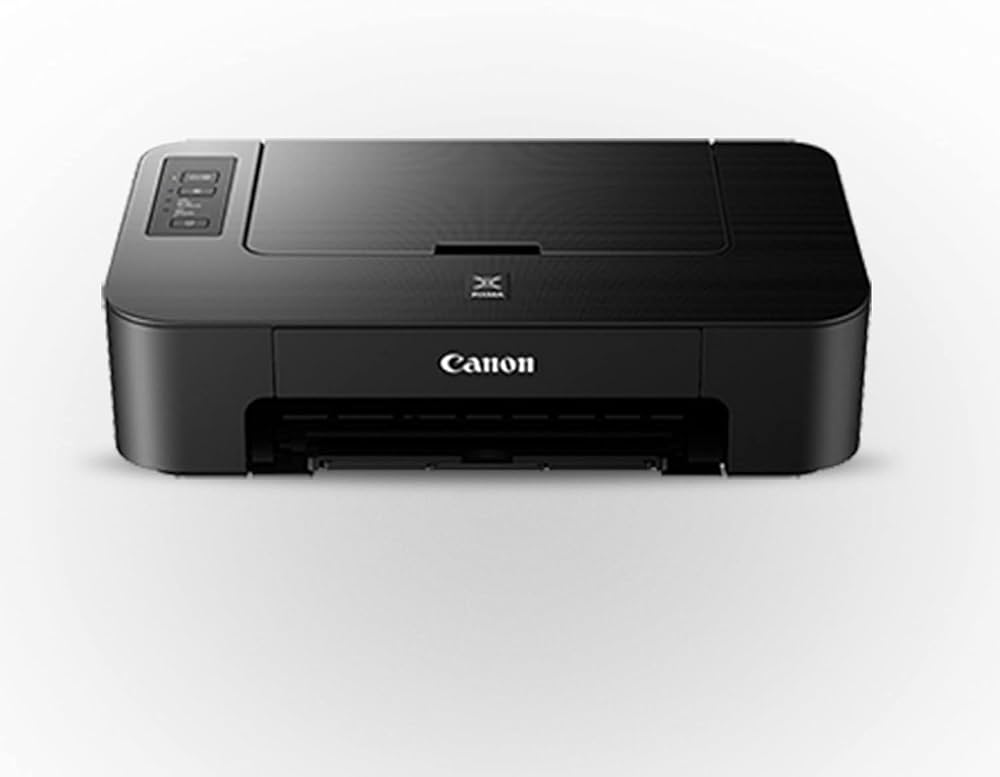
Your Canon printer suddenly stops working, the warning light starts flashing, or an unfamiliar error code appears on the display. You try printing again, but the same message returns.
Canon Printer Errors such as 5100, B200, and 5B00 can interrupt printing for different reasons. Error 5100 often involves an obstruction affecting the printhead carriage, while B200 and 5B00 may indicate problems requiring professional repair.
Understanding these Canon Printer Error Codes helps you identify which checks are safe to perform at home and when servicing may be necessary.
This guide explains common causes, troubleshooting steps, and solutions for Canon PIXMA and other compatible printer models.
What Do Canon Printer Error Codes 5100, B200, and 5B00 Mean?
Canon printers display error codes when they detect problems that prevent normal printing. Understanding these codes helps users identify the possible cause and choose the appropriate troubleshooting method.
Canon Printer Error 5100: This error commonly indicates an obstruction affecting the printhead carriage. Jammed paper, foreign objects, or improperly installed ink cartridges may interfere with carriage movement. Turn off the printer, inspect accessible areas for obstructions, and check cartridge installation. Avoid forcing internal components.
Canon Printer Error B200: This code generally indicates a serious internal printer fault on affected Canon models. It may involve the printhead or electronic components. Turn off the printer and follow Canon's model-specific repair instructions. Professional servicing may be necessary.
Canon Printer Error 5B00: This error is commonly associated with the printer's waste-ink absorber reaching its service limit. The absorber collects ink used during printhead cleaning. Repair or replacement may be required, and resetting the error alone does not resolve the underlying condition.
Fix 1: How to Resolve Canon Printer Error 5100
A Canon Printer Error 5100 frequently occurs when the printhead holder cannot move normally.
Possible causes include jammed paper, leftover packaging material, or incorrectly installed ink cartridges.
Troubleshooting Steps
Cancel the current print job.
Turn off the Canon printer.
Disconnect the power cable before inspecting accessible areas.
Open the appropriate printer cover.
Look for visible paper scraps or foreign objects.
Carefully remove accessible obstructions.
Check that the ink cartridges are seated correctly.
Close the cover, reconnect power, and restart the printer.
Avoid touching the transparent encoder film, carriage belt, or other delicate internal components. Do not force the carriage to move.
If error 5100 returns after these checks, the printer may need servicing.
Fix 2: What to Do About Canon Printer Error B200
A Canon Printer Error B200 is more serious than an ordinary paper jam or communication failure.
On affected Canon models, this code indicates an internal error for which Canon recommends repair.
Some users associate B200 with printhead or electronic problems, but the code alone does not confirm which component has failed.
Recommended Steps
Stop sending print jobs.
Turn off the printer.
Disconnect its power cable.
Record the printer model and exact error message.
Consult the official Canon instructions for that model.
Contact an authorized repair provider if instructed.
Avoid attempting electrical repairs, dismantling the printhead assembly, or using undocumented reset combinations.
Replacing ink cartridges or reinstalling Windows drivers is unlikely to resolve a hardware fault identified by B200.
Fix 3: How to Handle Canon Printer Error 5B00
Canon Printer Error 5B00 is associated with the ink absorber on certain models.
During routine maintenance, inkjet printers use small amounts of ink to clean their printheads. Waste ink is collected internally.
When the absorber reaches its service limit, printing may stop to prevent further waste-ink accumulation.
What Should You Do?
First, verify the code against your model's manual.
If the documentation confirms an ink absorber problem, arrange the recommended repair or replacement.
Do not assume that resetting an internal counter will solve the underlying issue. A counter reset without servicing the absorber can leave waste ink inside the printer.
Some models may still permit scanning even when printing is unavailable.
Fix 4: Restart the Printer After a Recoverable Error
If your Canon Printer Showing an Error message relates to a temporary problem, restarting the device may help after the underlying cause has been corrected.
Turn off the printer using its power button.
Wait briefly, then turn it back on.
Check whether the error message disappears.
If the same code immediately returns, avoid repeatedly power-cycling the device. Instead, follow the instructions associated with that specific code.
For B200 or 5B00, a restart should not replace the recommended service procedure.
Fix 5: Check Paper and Cartridge Installation
Paper obstructions and incorrectly seated cartridges can trigger certain Canon Printer Error Messages.
Inspect the accessible paper path for torn sheets or foreign objects.
Confirm that the paper guides are positioned correctly and that the loaded paper meets the printer's specifications.
If the model's instructions recommend checking cartridges, ensure they are properly installed.
Never pull jammed paper forcefully or reach into moving mechanisms while the printer is powered on.
These checks are particularly relevant to error 5100, but they are not universal solutions for B200 or 5B00.
Fix 6: Troubleshoot Canon Printer Errors on Windows 11 & 10
Some Canon Printer Errors on Windows 11 & 10 appear alongside stuck print jobs or an unavailable printer status.
After resolving any error displayed on the printer itself, check Windows.
Open Settings.
Navigate to Printers & scanners.
Select your Canon printer.
Open its print queue.
Cancel failed or unnecessary documents.
Confirm that printing is not paused.
Print a test page.
If the printer is functioning normally but Windows cannot communicate with it, check the USB or WiFi connection.
Updating compatible Canon printer software may help resolve driver-related printing problems.
However, Windows troubleshooting cannot repair an internal printer fault that requires hardware servicing.
Fix 7: Identify the Exact Canon PIXMA Printer Error Code
Different Canon PIXMA Printer Error Codes can produce similar symptoms, including flashing warning lights or failed print jobs.
Some models display a four-character support code, while others show a shorter panel code.
For example, certain Canon G-series models display P02 for support code 5100 and P07 for support code 5B00.
Before attempting repairs, record:
The complete printer model number.
The exact error or support code.
The number and pattern of warning-light flashes.
Whether the error appeared during printing, startup, or maintenance.
Any recent paper jams or cartridge changes.
These details make Canon Printer Troubleshooting more accurate and help distinguish software problems from hardware failures.
What If Your Canon Printer Is Still Not Printing?
If your Canon Printer Not Printing problem continues, the next step depends on the error code.
For 5100, confirm that accessible obstructions have been removed and cartridges are correctly installed.
For B200, follow the model-specific repair instructions.
For 5B00, investigate professional ink absorber servicing.
If no hardware error remains but printing still fails, check the print queue, connection, and printer driver.
Avoid performing factory resets without a specific reason, because they may erase wireless configuration settings without correcting the original fault.
Frequently Asked Questions
Can I fix Canon Printer Error 5100 myself?
Sometimes. Removing accessible paper obstructions or correcting cartridge installation may resolve the problem. Persistent errors require further inspection.
Is Canon Printer Error B200 a printhead problem?
It can be associated with an internal printer fault, potentially involving the printhead or electronics. The exact cause cannot be confirmed from the code alone.
Can Canon Printer Error 5B00 be fixed by resetting the printer?
A reset does not physically replace or service a full ink absorber. Follow Canon's repair instructions for the affected model.
Why does my Canon printer show an error after restarting?
The underlying problem may still be present. Record the exact code and follow its model-specific instructions.
Are Canon printer error codes the same for every model?
No. Their meanings and recommended solutions may differ between printer families and models.
Final Thoughts
Canon Printer Errors 5100, B200, and 5B00 require different troubleshooting approaches.
Error 5100 may be resolved by removing an obstruction or checking cartridge installation. B200 generally calls for model-specific repair guidance, while 5B00 can indicate an ink absorber that requires servicing.
Understanding the exact error code before attempting repairs helps avoid unnecessary software changes and potential printer damage.
Disclaimer: This article is an independent educational troubleshooting resource and is not affiliated with or endorsed by Canon. Always consult the official documentation for your exact printer model before attempting repairs.