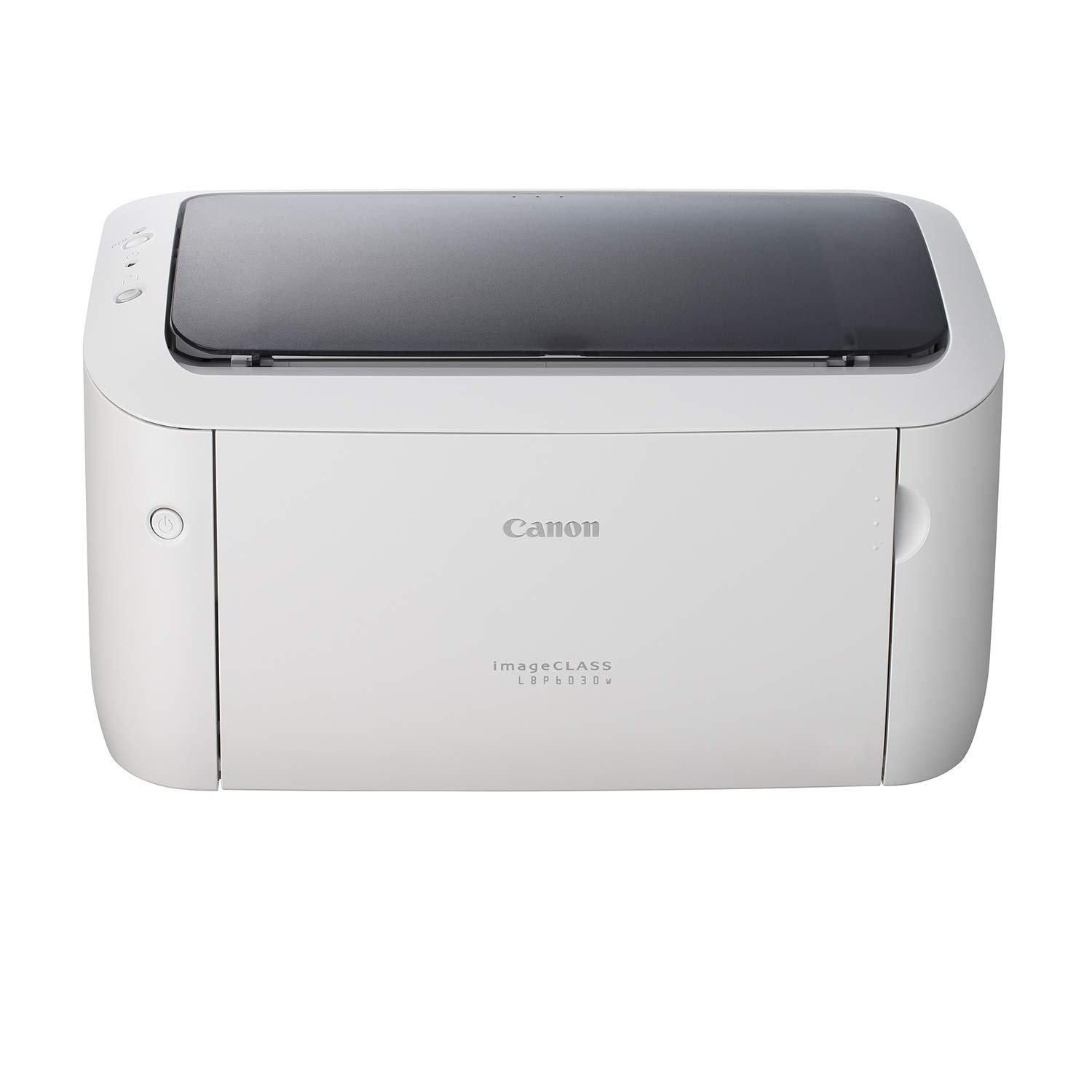
You click Print, but your Canon printer does nothing. The document remains in the queue, Windows displays a printing error, or the Print Spooler service suddenly stops responding. Even though your printer is powered on and connected, your computer cannot complete the printing task.
A Canon Printer Spooler Error usually occurs when the Windows printing system cannot process or deliver print jobs correctly. Corrupted temporary printing files, incompatible drivers, or a malfunctioning Windows service can interrupt normal printing.
If your Canon Printer Print Spooler Not Working, this troubleshooting guide explains seven practical fixes for Windows 11 and Windows 10 without immediately resetting your printer or reinstalling Windows.
What Causes a Canon Printer Spooler Error?
The Windows Print Spooler is a background service that manages documents waiting to be printed. When this service fails, printing may stop across one or multiple installed printers.
Common causes include:
Corrupted or unfinished print jobs.
Print Spooler service unexpectedly stopping.
Outdated or incompatible printer drivers.
Conflicting printer installations.
Temporary Windows printing errors.
Damaged spooler files.
Problems following a Windows or driver update.
Before making changes, check whether other printers connected to your computer are experiencing similar problems. If several printers fail simultaneously, the Windows printing service may be responsible.
Fix 1: Restart the Windows Print Spooler Service
Restarting the service is one of the simplest ways to resolve temporary spooler failures.
How to Restart Print Spooler Windows 11
Press Windows + R to open Run.
Type services.msc and press Enter.
Locate Print Spooler in the services list.
Right-click Print Spooler.
Select Restart.
Wait for the service to restart.
Try printing a test document.
The same procedure works on Windows 10.
If the service is stopped, select Start instead.
If your Canon Printer Spooler Keeps Stopping, note whether it fails immediately or only after submitting a particular document. This can help identify the underlying cause.
Fix 2: Clear Stuck Print Jobs
A damaged print job can prevent other documents from processing.
If your Canon Printer Print Queue Stuck, open the printer queue and remove unfinished documents.
On Windows 11:
Open Settings.
Select Bluetooth & devices.
Click Printers & scanners.
Choose your Canon printer.
Open the print queue.
Cancel documents that are no longer needed.
On Windows 10, navigate to Settings, Devices, and Printers & scanners.
After clearing the queue, restart your printer and submit a small text document.
If the queue cannot be cleared normally, proceed to the next fix.
Fix 3: Remove Corrupted Print Spooler Files
Windows stores temporary print-job files in a spool directory. Corrupted files may cause repeated errors.
Important: This procedure deletes pending print jobs from the affected Windows printing queue, potentially including jobs for other printers. Save any documents you need before continuing.
Follow these steps:
Press Windows + R.
Type services.msc and press Enter.
Right-click Print Spooler and select Stop.
Open File Explorer.
Navigate to C:\Windows\System32\spool\PRINTERS.
Approve the administrator permission prompt if necessary.
Delete the files inside the PRINTERS folder, but do not delete the folder itself.
Return to Services.
Right-click Print Spooler and select Start.
Administrator permissions may be required.
Now test your Canon printer again. If the error returns, investigate the driver or the document that triggers the failure.
Fix 4: Check Whether the Print Spooler Service Is Running
A Print Spooler Service Not Running message indicates that Windows cannot currently use its normal print queue management service.
Open Services using services.msc.
Double-click Print Spooler and review its status.
For typical Windows configurations, the Startup type should be Automatic.
If the service is stopped, select Start.
Apply the changes and restart your computer if necessary.
If Windows displays a specific error when starting the service, record the message. Repeated failures may indicate damaged printing components or incompatible printer software.
Avoid modifying unrelated Windows services without a clear reason.
Fix 5: Update or Reinstall Canon Printer Drivers
An incompatible printer driver can cause printing failures or interfere with the Windows spooler.
If your Canon Printer Not Printing after a driver update, check whether the installed software matches your printer model and Windows version.
To troubleshoot:
Identify your exact Canon printer model.
Open Canon's official product support resources.
Find compatible Windows 11 or Windows 10 software.
Download the recommended driver or installation package.
Follow the installation instructions.
Restart Windows if prompted.
If the problem started immediately after installing a new driver, review whether a compatible previous version is available.
Avoid downloading drivers from unfamiliar websites.
Fix 6: Remove Duplicate or Outdated Printer Entries
Multiple printer installations can create confusion when Windows sends documents to an inactive or incorrectly configured queue.
Open Settings and navigate to Printers & scanners.
Review the installed Canon printer entries.
Identify which installation corresponds to your current printer.
If you find an outdated or duplicate entry, remove it only after confirming that it is no longer needed.
Then add your active printer again using Windows printer setup or compatible Canon software.
Print a test page to verify that the correct queue is working.
This step is especially useful after replacing a router, changing the printer connection method, or reinstalling Windows.
Fix 7: Run Windows Printer Troubleshooting
Windows includes diagnostic tools that can help identify common printing problems.
On Windows 11, open Settings, select System, and navigate to Troubleshoot and Other troubleshooters.
If a Printer troubleshooter is available, run it. On newer Windows versions, printer troubleshooting may instead open through the Get Help application.
For Windows 10, open Settings, Update & Security, and Troubleshoot. Select the printer troubleshooting option if available.
Follow the displayed instructions and apply appropriate recommended changes.
After troubleshooting, restart your printer and test another document.
If the Print Spooler service continues crashing, note any displayed error details before seeking further assistance.
How to Prevent Canon Printer Spooler Errors
Although not every printing failure can be prevented, routine maintenance can reduce recurring problems.
Keep Windows and compatible printer drivers updated.
Avoid sending repeated copies of a failed document.
Remove obsolete printer installations.
Check the print queue when documents stop processing.
Restart the spooler when temporary failures occur.
Use printer software obtained from trusted sources.
If the spooler repeatedly crashes while printing one particular file, test a different document or application before changing system settings.
Frequently Asked Questions
Why does my Canon printer spooler keep stopping?
The service may be affected by corrupted print jobs, incompatible printer drivers, or damaged Windows printing components. Clear pending jobs and investigate recently installed printer software.
How do I restart Print Spooler on Windows 11?
Press Windows + R, enter services.msc, locate Print Spooler, right-click it, and select Restart.
Why is my Canon printer queue stuck?
A failed document, paused printing setting, or spooler problem may prevent queued jobs from processing.
Can I fix a Canon printer spooler error without reinstalling drivers?
Yes. Restarting the Print Spooler service or clearing corrupted print jobs may resolve temporary problems without reinstalling software.
Does restarting Print Spooler delete my documents?
Restarting the service normally does not delete your original documents. However, manually deleting spool files removes pending print jobs, which may need to be submitted again.
Final Thoughts
A Canon Printer Spooler Error can interrupt printing even when your printer is correctly connected to Windows.
Start by restarting the Print Spooler service and clearing stuck documents. If your Canon Printer Spooler Keeps Stopping, investigate temporary spool files, driver compatibility, and outdated printer installations.
These troubleshooting methods apply to common Windows 11 and Windows 10 printing problems. If the issue continues, record any Windows error messages and consult Canon's official printer documentation or Microsoft's Windows printing guidance.
Disclaimer: This is an independent educational troubleshooting article and is not affiliated with or endorsed by Canon. Windows settings and available troubleshooting tools may vary by version.