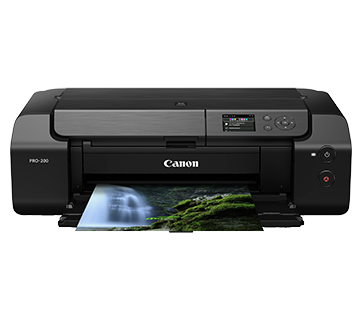
You are ready to print a document, but your Canon printer cannot connect to the wireless network. The printer may display a connection error, fail to detect your router, or remain disconnected even after you enter the correct WiFi password. This problem can occur on both new and previously working printers.
When a Canon Printer Won't Connect to WiFi, the problem is not always with the printer itself. Your router may have changed its settings, the printer may be using outdated network information, or another device may be interfering with the wireless connection.
Instead of repeatedly reinstalling your printer, follow these eight troubleshooting methods to identify the problem and get wireless printing working again.
First, Find Out Where the Connection Is Failing
Before changing any settings, check the printer's wireless status.
If the WiFi indicator is off or the printer reports that it is disconnected, focus on the connection between the printer and router.
If the printer is connected but your computer cannot find it, the problem may involve device discovery, printer software, or network restrictions.
This distinction is important because a Canon Printer Not Connecting to WiFi problem is different from a printer that is connected but unable to receive print jobs.
Fix 1: Check Whether Your WiFi Network Is Available
Start by confirming that your wireless network is working.
Connect a smartphone to your home WiFi and check whether the connection remains stable. If other devices are also disconnecting, investigate the router before changing printer settings.
If the network is unavailable, restart the router and allow it to finish starting.
Once the wireless network returns, check whether your Canon printer reconnects automatically.
Fix 2: Remove Old Wireless Connection Information
A Canon printer may continue searching for a previously saved network after you replace your router or change your WiFi name.
Open the printer's wireless settings and review the available connection options.
Run wireless setup again and select your current network.
Enter the correct password and wait for the printer to confirm the connection.
The exact procedure depends on your Canon printer model.
Fix 3: Check for a WiFi Band Compatibility Problem
Wireless routers commonly provide 2.4 GHz and 5 GHz networks.
Many older Canon PIXMA printers work only with 2.4 GHz WiFi, although some newer models support both frequencies.
If your printer cannot detect the network, check its supported wireless bands.
Make sure your router is broadcasting a compatible frequency.
If your router uses one network name for both bands, review whether its band-steering configuration is compatible with your printer.
Fix 4: Check Router Access Restrictions
Some routers have settings that restrict which devices can join the wireless network.
These may include MAC address filtering, device approval controls, or connection limits.
Open your router's management settings and check whether the printer is blocked.
If your printer has connected successfully but cannot communicate with your computer, also check guest-network isolation.
Only change settings you understand, and keep your network security enabled.
Fix 5: Test the Printer in a Different Location
A printer placed far from the router may struggle to maintain a wireless connection.
Move the printer temporarily into the same room as your router.
Try connecting again.
If the printer connects successfully in the new location, weak signal strength or interference may be responsible.
Consider relocating the printer or improving wireless coverage rather than repeatedly resetting the network.
Fix 6: Check the Wireless Security Mode
If your Canon Printer WiFi Not Working problem started after a router update, wireless security compatibility may be the cause.
Some older Canon printers do not support WPA3-only networks.
Review the wireless security standards supported by your printer.
If necessary, configure a secure compatible mode, such as WPA2-AES, for the appropriate network.
Do not disable password protection or use an unsecured wireless network.
Fix 7: Check Whether the Printer Received an IP Address
A printer may join the wireless network but fail to communicate properly if it does not receive valid network settings.
Open the printer's network information screen or print a network configuration report if supported.
Look for a valid local IP address.
If the printer shows no address or an automatic address beginning with 169.254, it may not have received an address from the router.
Restart the printer and check that the router's DHCP service is enabled.
If the problem continues, review the router's device connection settings.
Fix 8: Reset the Wireless Settings and Set Up Again
If the previous checks do not resolve the problem, reset only the printer's network settings.
This removes saved wireless information so you can create a fresh connection.
Follow the network reset procedure for your Canon printer model.
After the reset, select the correct wireless network, enter its password, and complete setup.
Check the connection status before trying to print.
What If the Canon Printer Connects but Windows Cannot Find It?
If your printer successfully joins WiFi but does not appear on your computer, check Windows printer discovery.
On Windows 11, open Settings > Bluetooth & devices > Printers & scanners.
Select Add device and allow Windows to search for the printer.
If it does not appear, use the manual addition option and follow the available instructions.
Also, confirm that your computer is not connected to an isolated guest network.
For Mac, open System Settings > Printers & Scanners and check whether the printer is available to add.
How to Keep Your Canon Printer Connected to WiFi
A stable wireless environment helps prevent recurring connection problems.
Keep the printer within good router range and avoid placing it near equipment that causes interference.
When changing your WiFi password or replacing your router, update the printer's connection settings.
If the printer frequently becomes unreachable because its local IP address changes, consider using a DHCP reservation in your router.
Also, keep compatible printer software installed on your computer.
Frequently Asked Questions
Why does my Canon printer detect WiFi but refuse to connect?
An incorrect password, incompatible security mode, or router access restriction may prevent the printer from joining the network.
Why is my Canon printer not connecting after changing the router?
Your printer may still contain information from the previous wireless network. Run wireless setup using the new network name and password.
Can a Canon printer connect to 5 GHz WiFi?
Some Canon models support 5 GHz, while many older PIXMA models support only 2.4 GHz. Check your printer's specifications.
Why is my Canon printer connected to WiFi but showing offline?
The printer may be unreachable from your computer because of network isolation, an incorrect printer configuration, or a communication error.
Final Thoughts
If your Canon Printer Won't Connect to WiFi, identify whether the problem involves wireless detection, router authentication, or communication with your computer.
Checking saved network information, router restrictions, security compatibility, and IP address assignment can help uncover issues that basic restarting does not resolve.